Sunday, July 19, 2009

HJ Split - How to join file

Because of problem with corrupted file, people tends to split file using another software. The most common one is HJ Split. This is a freeware software, so you can download and distribute it legally. No need to pay for it. You can find it easily in the internet. The file split by this software will have 001, 002, 003 and so on extension. Just like the Winrar archive files, the size for these files also exactly the same except for the last part. Here is the screenshot of a set of HJ Split file:


As for now, I haven't experience any error with the downloaded files which has been split using this software. This is an advantages for this software if compared to Winrar. Another advantage is we can test the quality of the movie once we have completed download the part 1 file. You can play using media player such as Media Player Classic. And also, this is a portable software, you don't have to install into your PC. Just save it even in your flash drive and you can use it in any PC, as long as the PC is using the correct operating system.

This is the interface of HJ Split:

How to join the files? Just click the 'Join' button and then click the 'Input File'.

Note that this software will only list down .001 file for you to select. Other parts of the file will not be listed.

Just select the file and click 'Open'. This interface will appear.

You can select your destination folder by clicking the 'Output File' button. The default folder will be the same with the input file. If you're ready just click the 'Start' button and wait for the joining process to complete. After the process is completed, you'll get a working movie file and you can enjoy it.


* 1. All of your downloaded part should be in the same folder and have the same name except for the extension (.001, .002, .003 and so on).
* 2. You only have to select the .001, and this software will automatically join all part of it as long as the other parts are in the same folder and their name is exactly the same.

Saturday, July 18, 2009

Winrar - Testing Archive Files

Actually, we can test the download archive file and make sure it is not corrupted right after the download process finished. I've always done this before proceed to the next archive file. If the first part is corrupted, then I'll stop proceeding to download the next part since my internet is limited. If you're using streamyx with unlimited usage, then you should have no problem to download all of it.

How to test the archive file? Refer the image below:

In the red box, you can see the 'Extract To' and 'Test' button. Just click the 'Test' button and Winrar will test the archive file. If you have complete part of archive files then it will tell you if there is an error of certain part. You will know which part is corrupted. If there is no error, then it will tell you 'No error found during test operation', like in this screenshot:

But if your archive file is corrupted, then you'll receive some error message, just like in my older post about corrupted files. Winrar will tell you which part is corrupted.

If you don't have complete set of archive files you still can test the files but you will get a pop up message asking to browse for the file. Take a look at this screenshot:

Note that if one of your archive file has different spelling then this message will appear too. You can browse for the file and it'll continue testing. This method also work for extracting.

If you haven't download the next part you can click 'cancel' and this message will appear:

The message just said that the file is corrupted but it didn't tell us which part. If you get this message, then you'll have no problem to extract the file. But this is still not completed. You may get an error file for the next part because you still didn't test the complete set of archive file. You may continue downloading the next part and tested it again until you've complete all part of it.

Like I've said before, I always tested the file after I've completed the first part. And if the first part is corrupted, then I won't download the next part. But if no errors found, then I'll continue downloading the next part. After downloading the second part is completed, then I'll test it again. At this time, no matter if there is an error or not, I'll continue download all part of it until complete. And then I'll use the 'Keep Broken File' method to extract the file. If the file isn't working, I'll have to delete all of them. No use to keep the broken file. But if I have unlimited usage of bandwidth, no need to test the archive file. Just download all part of it and I won't lose a thing.

Friday, July 17, 2009

Winrar - Corrupted Archive Files

If you still remember, I've mentioned something about a problem related to Mediafire filehosting. It is about corrupted file. Mediafire currently has this problem, archive files downloaded from this site tend to corrupt during the download process. But sometime if you're downloading from other filehosting, you still face this problem. If this thing happened, then you'll have some trouble to extract the file.

Normally, when this thing happened, not all 8 parts of the archive files are corrupt. Maybe 1 or 2 parts only. How do you identify the corrupted parts? When you're extracting the archive files, an error message will pop up if one or more file is corrupted. Refer this image.

If there are 2 parts corrupted, then you'll get three error messages. The error messages will tell you which part is corrupted, in this case part 1 and part 6 (refer the screenshot). The third message will appear after the extracting process is completed. If you're extracting and the error messages appear, no file will be extracted into your hard disk, and you can't watch the movie.

How to overcome this? If you've identified the corrupted parts, you can try to download it again. Sometimes the files is corrupted while the download process. So you need to re-download it and try to extract it again. Maybe this will help. But if re-download didn't solve the problem, then you have to do the other step to overcome corrupted file.

First, open the part 1 archive file and select 'extract to'. Before you select the destination folder, tick the 'keep broken file' box. Refer this image:

After that, select your folder and proceed with the extraction process. You'll get the movie file and you can try to watch it. There's no way to identify whether the movie file is working or not, unless by trying.

I can't guarantee this method will overcome the corrupted file problem, but most of the time it'll work. Its worth for a try since you've already download all parts of it.

Thursday, July 16, 2009

Winrar - How To Extract Part 2

If you're using Windows Vista and facing the same problem with my friend, then you have to extract using this method. The previous method is easier but this one is not hard either. Just follow this step but the archive file name should be exactly the same except the sequence number.

First, double click the part 1 file (or open it using winrar). The winrar interface will appear, just like this screenshot.

Note that the red box on top of the winrar interface. Just click the 'extract to' button to extract the file. A new window will appear, like in the screenshot below.

Next step is to select where do you want to extract the file. Just select your desired folder and click ok. The extraction process will start. (If the archive file is password protected then it'll prompt for a password, just key in the correct password and click ok. After that, the extraction process will start). Wait for the extraction process to finish, after that you'll find the movie file in your selected folder, and you can delete all the archive files. You should able to play the file using your player and enjoy your movie.

Tuesday, July 14, 2009

Winrar - How To Extract Part 1

In my previous post, I've mentioned about file size limit for some filehosting, such as 100 MB for Mediafire. It's hardly to find any movies with size smaller than 100 MB. So how can people upload movies to this site? Normally, people will split the movies into several files, using certain software. In this post I'll explain about a software called Winrar. And of course you have to installed it in your PC before you can use it. This is also not a freeware but you can find it in the net, complete with the crack/keygen if you don't want to pay for it.

Lets say a 700 MB movie file, we can split the movie into 7-8 part with about 100 MB each. Actually, each file will be slightly less than 100 MB, about 95 - 98 MB so that the result will be 8 part of files.

If you find these kind of links than you'll have to download all parts of it. Lets say a 700 MB movie file, it has been split into 8 parts, called archive file. So you have to download all 8 parts of it. Normally in a forum people will post complete set of the movie, in this case 8 parts of it, and sometime with the password. This image below shows the example of a movie split into 8 parts.

In the picture, you can see that the first 7 parts of it have the same size. Only the last part has the different size. You can double click the archive file to see the movie file. Refer this image.

Basically you can double click the movie file in the winrar interface, and winrar will extract it. After the extraction is completed, you can watch the movie. But you'll have to do this again if you want to watch the movie another time. It's better to extract it permanently, means you'll have the movie file instead of 8 different parts of it.

To extract the file is very easy. First, make sure the file name for all parts of it is the same, no different even for a single character. Then just right click the part 1 file and then select 'extract here'. It'll ask for the password if the uploader create a password for a protection. Refer the image below.
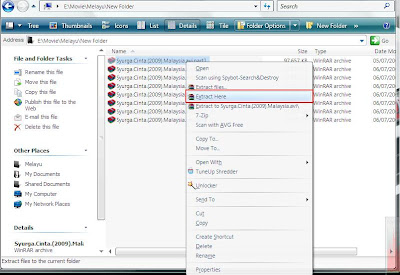
In this tutorial, there is no password so it'll extract it right away. After that, just wait until the extraction process is completed. This is the screenshot for the extraction process.

You can see the movie file already being extracted in the same folder. And when the process is completed, you'll have the working movie file, just like in this screenshot:

Note that the working movie file size is the same with the total size of those 8 parts of the archive file. You can play the movie by simply open the file, just like a normal movie file. And you can delete all 8 parts of archive files to save some space in your disk. No need to keep that archive files since you already have the movie file.

This is the easiest step for extracting using winrar. But my friend has a problem with this method because he's using Windows Vista as his OS. I haven't found any problem if you're using Windows XP. If you're using Vista and facing this problem too, I'll share another method with you in the next post.

Sunday, July 12, 2009

Movie Files- Playing The Movie File

You've done the download and you are ready to watch the movie. But what is the player that you're gonna use to play the video?

Basically, there is a lot of different player for your PC, depends on your operating system. Since I'm using Windows XP, so we're gonna discuss about the player for this OS. For XP, of course there are more than one player.

For avi files, you can use Windows Media Player. But sometimes if you've just formatted your computer, your Windows Media Player can't play the files properly, you can hear the audio but there is no video in the screen. If this thing happened, you need to install codec into your computer. I'm using K-lite Mega Codec Pack, and with this codec, there will be another player in your OS, which is Media Player Classic.

Personally, I prefer this player for my video files. It can play most of the video format including avi, mkv, rmvb, flv, mpeg and so on. And because you've already installed the right codec for your video file, then you wouldn't face any problem to play any movies. This player and also Windows Media Player can play a movie with the soft subtitle.

There is another player specially to play rmvb files format, which is RealMedia Player. Some people likes to use this player but not me. If you've installed this software along with K-Lite Mega Codec Pack in your PC, most probably you'll face a problem. There will be a conflict between these two codec. You still can play the files but if you're using Media Player Classic, you'll find no audio. No problem for the audio and video for RealPlayer but one thing you should know, the subtitle will not appear unless it is hardsub. This will be a big problem, especially for a foreign movie. Because of this, I just use Media Player Classic for all type of video files. Beside, you can save some space in your hard disk by using only one software.

These are the three players that I've been using or trying. Of course there are others player but I'm satisfied with these. Some people may use Gom player, neuview player and so on. Once again, it's up to you. You don't have to follow my suggestion and you can try others. Maybe you'll find out that other player suit you best.

Saturday, July 11, 2009

Movie Files - Files Format

Alright, in this post I'll talk about file format for Movies and TV series. There are plenty of different formats for movie files. The most common one is audio video interleave (avi). Most of movies and TV series are in this format. Actually, there are several type of avi (such as DivX, XviD and so on), eventhough its extension is remain the same. But I'm gonna discuss about avi in general, not the different type of it. Personally, this is my favorite type of movies format. I will always download this format for a movies despite its size. The reason is because I can play this type of format directly using my DVD player, and watch it using my wide screen television. Normally, the size of this format for a movie is about 700 MB but lately group release (such as DEVISE,NoiR, SANTi, STG, CLUE and so on) often release 1.4 GB movies. Bigger size means longer time to download. I'll prefer the 700 MB size. For TV series, normally its size is about 350 MB for a 40 minutes episode.

Because of its size, we need a massive size of hard disk for storage. This is why other people prefers another format for movies file, which is .rmvb (stands for RealMedia Variable Bitrate). Normally for a movie, the size for rmvb format is about half of the same movie in avi format. Compares with avi, the quality for this type of format is slightly lower but it still worth for you to watch.

And also, there is another format that is quite often lately, which is .mkv (stands for Matroska Video). Its size is about the same with rmvb format but the quality is slightly better. If you're looking for a smaller size files, I'll suggest this format because it has better quality. Unfortunately, this format is unrecognized by my DVD player, so that it leaves me with no option to choose.

And of course there are another type of movie format such as mp4, mpeg, wmv and etc. but it's quite rare and hard to find. Besides, their quality will make you regret for downloading them.